


If you’re running ads online, you already know how important every click, scroll, and purchase can be. Every user interaction on your website leaves a data trail that will act as the foundation for optimizing your Google Ads campaigns. Without accurate tracking, you’re essentially shooting arrows in the dark, spending on impressions and clicks without knowing which ones actually convert into customers. That’s where Google Ads conversion tracking comes in.
Setting it up is no longer as simple as adding a tag to your website. With growing awareness around data privacy and stricter regulations disrupting third-party tracking methods, marketers now need smarter ways to capture meaningful, consented data. This is why first-party data and server-side tracking are so crucial. They offer brands a more reliable and privacy-compliant way to measure ad performance and improve return on ad spend (ROAS).
In this guide, we’ll cover everything you need to know about how to set up Google Ads conversion tracking — from understanding its importance and prerequisites to a detailed, step-by-step setup process. We’ll also share best practices and highlight how integrating a first-party tracking solution like ScaleX can strengthen your data accuracy and campaign performance.
Also read: How To Set up Server-side Tracking.
Why Track Conversions in Google Ads?
Google Ads conversion tracking lets you see which of your Google Ads campaigns are generating leads and facilitating sales (and which are not). This gives more clarity in understanding your ROI and making sure Google Ads spend is driving real value.
If you are not tracking conversions, you will not know what happens after someone clicks on your ads. Do they make a purchase? Did they fill out the form? Or download the app? Or set up a demo?
Conversion tracking helps you find answers to all such questions. You get to accurately measure the return on your ad spend (ROAS). Google Ads conversion tracking gives you clarity on which ads, keywords, or audiences are driving real results.
Why Google Ads Conversion Tracking Matters?
Conversion tracking transforms Google Ads from guesswork into a data-driven growth engine. Without it, you’re just spending, not optimizing.
- Measure ROI effectively: Conversion tracking connects ad spend to actual business outcomes, helping you see what’s working and what’s not.
- Optimize campaigns with data: Google Ads’ automated bidding strategies like Maximize Conversions or Target CPA rely on conversion data to improve performance.
- Identify high-performing keywords and ads: You can refine your targeting and budget allocation based on which campaigns generate the most valuable actions.
- Build smarter audiences: Conversion data powers remarketing and lookalike audience strategies, allowing you to re-engage potential customers.
- Enable accurate reporting and attribution: It ensures your analytics reflect the full customer journey, from ad click to conversion.
Also read: Third-party cookies and Affiliate Marketing: Rethinking Tracking and Performance.
Types of Google Ads Conversions
Before setting up conversion tracking, it’s important to understand the different types of conversions you can track in Google Ads. Each type helps you measure a unique user action that contributes to your marketing goals.
1. Website Conversions
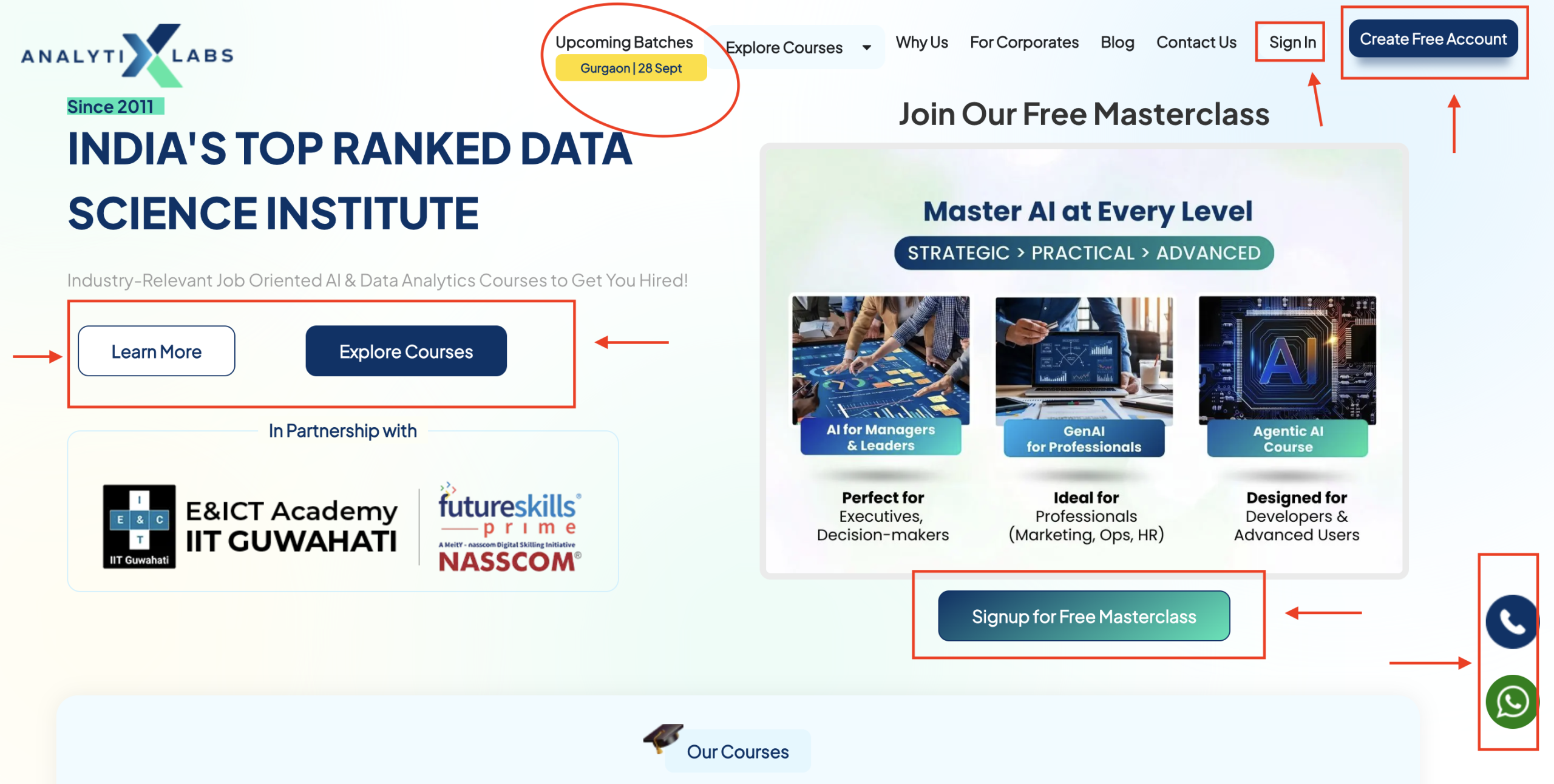
These are actions that users take on your website after clicking your ad, such as completing a purchase, submitting a lead form, signing up for a newsletter, or downloading a file.
Example: Tracking how many users buy a product after clicking your ad.
Below are a few examples where conversions can occur on a website. Example: AnalytixLabs.
2. Phone Call Conversions
You can track calls that happen directly from your ads or after someone clicks your ad and calls from your website.
Example: Measuring calls made to your sales team after a user clicks a “Call Now” ad extension.
3. App Conversions
For businesses with mobile apps, Google Ads lets you track installs, in-app purchases, or other valuable app actions.
Example: Tracking how many users install your app after seeing your ad on Google Search or YouTube.
4. Import (Offline) Conversions
Some conversions happen offline, like in-store purchases or signed contracts. You can import this data into Google Ads to close the loop between ad clicks and offline outcomes.
Example: Uploading CRM or point-of-sale data to measure how many ad leads convert into paying customers.
5. Local Actions (for Location Extensions)
These conversions help businesses with physical locations track in-person interactions.
Example: Measuring actions like “Get Directions” clicks or store visits triggered by local ads.
Pro Tip: For accurate and privacy-compliant measurement, consider combining client-side tags (via Google Tag Manager) with server-side tracking through a signal layer like ScaleX. This approach ensures that every conversion, whether online or offline, is captured reliably, even as browser tracking restrictions increase.
How to Set up Google Ads Conversion Tracking?
To capture and attribute accurately every important customer action, such as clicks, purchases, sign-ups, calls, or app installs, follow these steps and set up your Google Ads conversion tracking.
Also read: Attribution Modeling With Server-side Data in Post-Cookie Era.
Step 1: Sign in to Your Google Ads Account
- Go to ads.google.com and log in using your Google account.
- If you’re new, create an account by following the guided setup process.
- Once logged in, navigate to the top menu and click Tools & Settings → Measurement → Conversions.
Step 2: Choose a Conversion Source
Google Ads lets you track different kinds of conversions based on where they happen. You’ll see four main options:
- Website – Track user actions on your website (form fills, purchases, downloads).
- App – Track installs and in-app actions.
- Phone Calls – Track calls from your ads or from your website after an ad click.
- Import – Import offline conversions (e.g., from CRM or POS systems).
Select the one that matches your business goal.
Step 3: Create a Conversion Action
- Click + New Conversion Action and choose your desired conversion source.
- For example, if you select Website, you’ll be prompted to enter your website domain.
- Google will automatically scan your site and suggest events it can track.
- Choose the ones that matter, like purchase, sign-up, or add to cart.
You can also create custom events if your conversions are not part of the standard list.
Step 4: Configure Your Conversion Settings
When setting up your conversion, fill out these key details carefully:
- Conversion name: A clear, descriptive label (e.g., “Lead Form Submission”).
- Value: Assign a monetary value to each conversion (for ROI measurement).
- Count: Choose whether to count every conversion or only one per click.
- Click-through conversion window: Select how long after an ad click a conversion should be counted.
- Attribution model: Use data-driven attribution (recommended) for accurate performance insights.
Click Create and Continue once done.
Step 5: Set Up the Conversion Tag
Once the conversion action is created, Google provides you with tag installation options:
Option 1: Use Google Tag Manager (Recommended)
- If you already use Google Tag Manager (GTM), choose the GTM option.
- Copy the Conversion ID and Conversion Label provided by Google Ads.
- In GTM, create a new Google Ads Conversion Tracking tag and paste these details.
- Set a trigger for the conversion event (like “Form Submission” or “Purchase Confirmation”).
- Preview, test, and publish the container.
Option 2: Add the Tag Manually to Your Website
- If you’re not using GTM, select “Install the tag yourself.”
- Add the global site tag (gtag.js) to every page of your site, right before the closing
</head>tag. - Then, add the event snippet on the specific conversion page (e.g., thank-you or order confirmation page).
Step 6: Verify and Test Your Setup
Before launching your campaign:
- Use Google Tag Assistant or Tag Assistant Companion to verify that your tags fire correctly.
- Perform a test conversion (e.g., fill out a form) and check if it appears under Tools & Settings → Conversions in your Google Ads dashboard.
- Allow some time for data to appear (typically within a few hours).
Step 7: Enable Enhanced Conversions (Optional but Recommended)
Enhanced Conversions use first-party data, like hashed email or phone numbers, to improve match rates and tracking accuracy.
- In your conversion action settings, enable Enhanced Conversions.
- This helps recover lost conversion data due to browser restrictions or cookie blocking.
- It ensures Google Ads receives cleaner, privacy-safe signals for better attribution.
Step 8: Strengthen Tracking with Server-Side Integration (via ScaleX)
Client-side tags alone may no longer capture the full picture due to privacy regulations, cookie restrictions, and browser limitations.
This is where ScaleX, a first-party data and server-side tracking solution, comes in.
With ScaleX, you can:
- Collect consented first-party data directly from your site or CRM.
- Route conversion events securely through server-side APIs (not just browser tags).
- Reduce data loss from ad blockers or cross-domain tracking limits.
- Feed cleaner, deduplicated data to Google Ads for more accurate reporting and bidding optimization.
Example: Instead of relying solely on a browser cookie, ScaleX captures conversions server-side and sends them to Google Ads through the Conversion API, ensuring no lost conversions even if cookies are blocked. Visit ScaleX by Scaletrix to learn how to integrate a server-side signal layer for better attribution.
Step 9: Monitor and Optimize
Once tracking is set up and verified:
- Review performance metrics regularly, such as Conversions, CPA, ROAS, and Conversion Rate.
- Adjust bids, budgets, and ad creatives based on what drives the most valuable conversions.
- Use conversion data to create remarketing or similar audiences.
- Continuously test new landing pages, ad variations, and bidding strategies.
Now that you know how to set up Google Ads Conversion Tracking, let’s understand the role of first-party data in Google Ads.
Google Ads Tracking and First-party Data
By now, you already know that first-party data is the information that you capture directly from your users. This information is consented and accurate. It includes user details, behavioural data (page visits, time spent, purchase details), and engagement signals (newsletter signups, downloads, app usage). You own this data, which means it is reliable, accurate, and compliant with privacy standards.
Also read: Sentiment Signals in Attribution Modeling
First-party data is important for Google Ads to function properly. The cleaner the data, the better is the measurement. Here’s why first-party data matters in Google Ads:
1. Improves conversion tracking accuracy:
First-party data allows Google Ads to identify and match conversions more accurately. For instance, Enhanced Conversions use hashed first-party identifiers (like email) to attribute actions to the right campaigns even if cookies fail.
2. Smart audience targeting and remarketing:
Uploading your customer lists or CRM data to Google Ads helps create Customer Match and Similar Audiences. These lets you to reach high-intent users who already know your brand or find new ones who resemble your best customers.
3. Improve bidding and optimization:
When Google Ads receives high-quality first-party conversion signals, its automated bidding strategies (e.g., Target CPA, Maximize Conversions) perform better. The algorithm learns from more complete, reliable data, which means your bids are optimized toward actions that truly matter.
4. Enhance attribution and insights:
First-party tracking provides a fuller picture of the customer journey across multiple touchpoints. It helps reduce “dark conversions” and underreporting caused by data loss in browsers like Safari or Firefox.
Also read: Safari Strips Click Identifiers: What it means for marketers
5. Compliant and privacy control:
Collecting data directly from users (with explicit consent) ensures you stay compliant with privacy laws such as GDPR, CCPA, and India’s DPDP Act. It builds trust and transparency with your audience while still fueling data-driven marketing.
Google Ads Conversion Tracking: Best Practices
Setting up conversion tracking in Google Ads is half done. Keeping it accurate, privacy-safe, and performance-driven requires ongoing optimization. Here are some best practices for capturing high-quality data and making every ad click count.
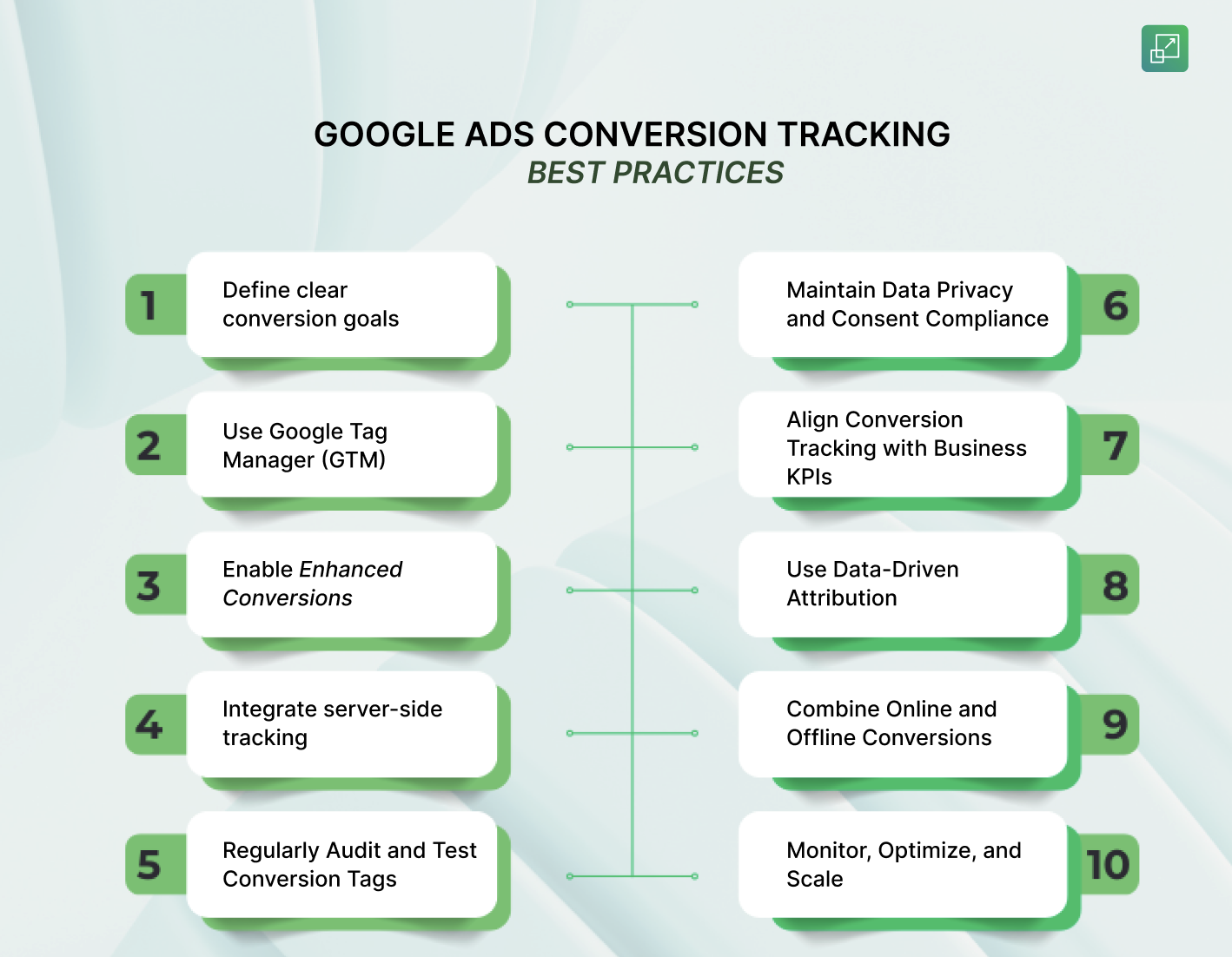
1. Define clear conversion goals
Identify which user actions add value to your business. Whether it is purchases, form fillouts, newsletter sign-ups or demo bookings, know what you want to track and why. Avoid tracking vanity metrics like page views that don’t indicate real user intent.
Pro Tip: Categorize your conversions as primary (sales, leads) and secondary (micro actions like video views) for more focused optimization.
2. Use Google Tag Manager (GTM) for easy tag deployment
Managing multiple tracking codes manually can be error-prone. Using Google Tag Manager (GTM) simplifies your setup, allowing you to deploy, test, and manage all your conversion tags from one place.
- Keep your GTM workspace organized with clear naming conventions.
- Regularly test tags using Tag Assistant before publishing changes.
3. Enable Enhanced Conversions for better accuracy
Enhanced Conversions leverage first-party customer data (hashed emails or phone numbers) to fill in the gaps left by cookie-based tracking.
- Go to your conversion action settings and toggle on Enhanced Conversions.
- Ensure you’re capturing user information in a privacy-compliant way (via forms or logins).
This improves match rates and ensures more conversions are attributed correctly to the right ads.
4. Integrate server-side tracking
Client-side tracking alone is becoming less reliable due to ad blockers and browser restrictions. Integrating server-side tracking via a signal layer like ScaleX helps you:
- Send conversions directly from your server to Google Ads (Conversion API).
- Reduce data loss and duplicate reporting.
- Improve conversion match rates for more accurate ROAS measurement.
- Maintain compliance with privacy laws by keeping user data within your secure environment.
Route signals server-side through ScaleX so that your data becomes more complete, accurate, and privacy-safe, and facilitates smarter campaign optimization.
5. Regularly Audit and Test Conversion Tags
Small tracking errors can lead to large optimization mistakes. Conduct periodic audits to ensure your setup works as intended:
- Use Tag Assistant and Google Ads Diagnostics to test firing conditions.
- Validate conversion counts across Google Ads and Analytics (they should align within a reasonable variance).
- Review your attribution windows and make sure they reflect your actual sales cycle.
6. Maintain Data Privacy and Consent Compliance
With global privacy laws (like GDPR, CCPA, DPDP) evolving, user consent must always come first.
- Implement a Consent Management Platform (CMP) that integrates with your tag manager.
- Capture and store consent signals before firing tracking tags.
- Clearly disclose how user data is used in your privacy policy.
7. Align Conversion Tracking with Business KPIs
Conversion tracking should map to business outcomes, not just ad metrics.
- Assign proper conversion values to your events (e.g., ₹500 per signup, ₹5,000 per purchase).
- Use value-based bidding (Target ROAS or Maximize Conversion Value) once enough data accumulates.
This helps Google Ads optimize toward profitability, not just volume.
8. Use Data-Driven Attribution
Switch from last-click attribution to data-driven attribution (DDA) for a more realistic picture of what’s driving conversions.
- DDA uses machine learning to assign credit across multiple touchpoints.
- It ensures that campaigns, keywords, and ads contributing earlier in the journey also get recognized.
9. Combine Online and Offline Conversions
If you generate leads online but close deals offline (e.g., via sales calls or store visits), don’t stop tracking at the form submission.
- Use Offline Conversion Import to bring CRM or POS data back into Google Ads.
- Match users via GCLID or user ID to complete the conversion journey.
This helps Google Ads understand the full ROI of your campaigns and allocate spend more efficiently.
10. Monitor, Optimize, and Scale Continuously
Conversion tracking is not a “set it and forget it” task.
- Review performance weekly. Focus on conversion rate, CPA, and ROAS.
- Identify underperforming campaigns and reallocate budgets.
- Keep testing new bidding strategies, creatives, and landing pages.
- Use insights from ScaleX’s signal analytics to detect data gaps and refine your conversion flow.
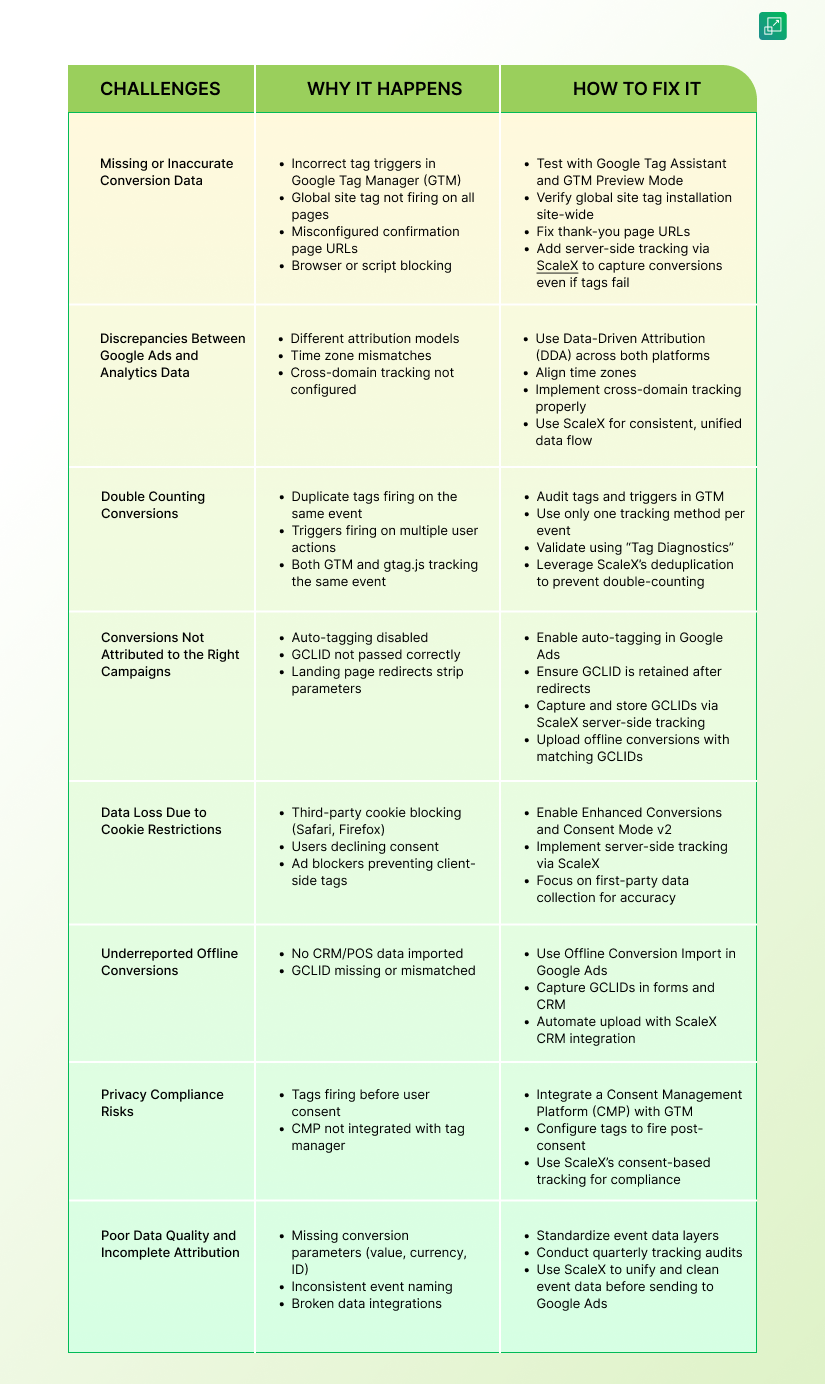
Common Challenges in Google Ads Conversion Tracking (and How to Fix Them)
Even when your tracking setup seems perfect, issues can crop up that distort performance data, inflate costs, or hide valuable insights. Here are a few common challenges in Google Ads Conversion Tracking setup. Know how to fix them and save your campaigns from costly blind spots.
Concluding Thoughts
Accurate conversion tracking is at the core of a successful Google Ads strategy. Combine Google’s native tools with first-party and server-side tracking (using ScaleX) and drive precise, privacy-compliant measurements. Make smart decisions, optimize budgets, and run campaigns that drive conversions.